
 06/02/2025
 Daniil Franks
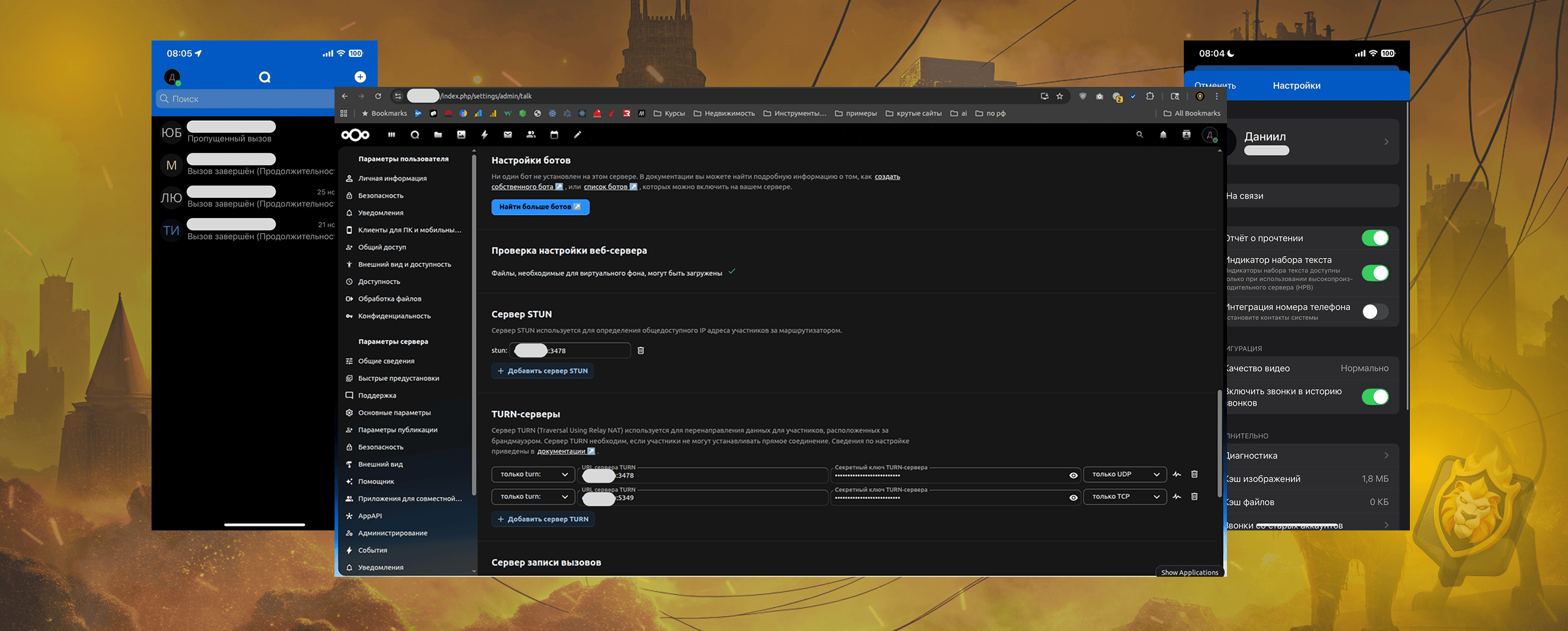
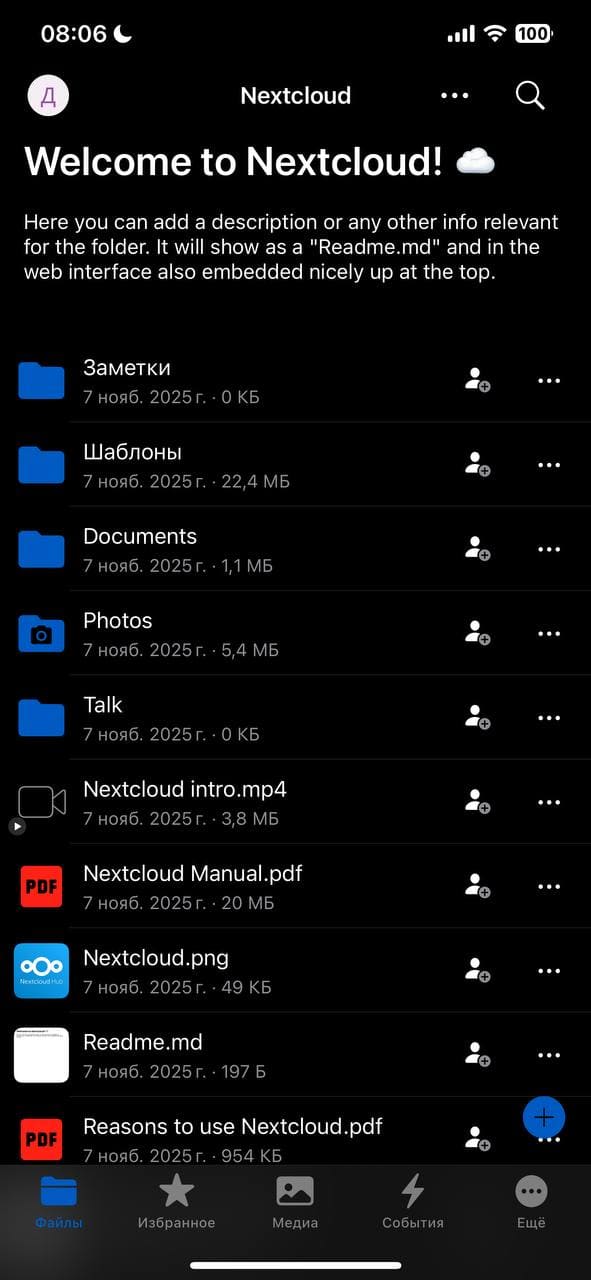
A self-hosted messenger on the Nextcloud Talk platform is a solution for teams and organizations that value privacy, independence from third-party services, and the ability to integrate communications with files, calendars, and tasks in a unified space.
Connect to the server via SSH and update packages:
ssh root@99.11.123.94
sudo apt update && sudo apt upgrade -y
Nextcloud requires a web server, DBMS, and a set of PHP modules:
sudo apt install apache2 mariadb-server libapache2-mod-php php php-mysql php-gd php-xml php-mbstring php-curl php-zip php-bz2 php-intl php-gmp php-bcmath php-imagick php-redis redis-server unzip wget vim -y
sudo mysql_secure_installation
Follow the prompts: set the root password, remove anonymous users, disable remote root login.
sudo mysql -u root -p
In the MySQL console, execute:
CREATE DATABASE nextcloud CHARACTER SET utf8mb4 COLLATE utf8mb4_general_ci;
CREATE USER 'myapp'@'localhost' IDENTIFIED BY 'f4378fh37fh4f29dh8972hd923';
GRANT ALL PRIVILEGES ON nextcloud.* TO 'myapp'@'localhost';
FLUSH PRIVILEGES;
EXIT;
It is recommended to use a strong password and save it in a password manager.
cd /var/www/
sudo wget https://download.nextcloud.com/server/releases/latest.zip
sudo unzip latest.zip
sudo mv nextcloud /var/www/nextcloud
sudo chown -R www-data:www-data /var/www/nextcloud
sudo chmod -R 755 /var/www/nextcloud
Create the file /etc/apache2/sites-available/nextcloud.conf:
<VirtualHost *:80>
    ServerName test.ru
    DocumentRoot /var/www/nextcloud

    <Directory /var/www/nextcloud/>
        Require all granted
        AllowOverride All
        Options FollowSymLinks MultiViews
    </Directory>

    ErrorLog ${APACHE_LOG_DIR}/nextcloud_error.log
    CustomLog ${APACHE_LOG_DIR}/nextcloud_access.log combined
</VirtualHost>
Activate the configuration and required modules:
sudo a2ensite nextcloud.conf
sudo a2enmod rewrite headers env dir mime
sudo systemctl restart apache2
sudo apt install certbot python3-certbot-apache -y
sudo certbot --apache -d test.ru
Follow the instructions: provide your email, agree to the terms, choose HTTPS redirection.
nextcloudmyappf4378fh37fh4f29dh8972hd923localhostsudo apt install coturn -y
sudo vim /etc/turnserver.conf
Example configuration:
listening-port=3478
tls-listening-port=5349
listening-ip=99.11.123.94
external-ip=99.11.123.94
relay-ip=99.11.123.94
realm=test.ru
server-name=test.ru
use-auth-secret
static-auth-secret=fdfg5y57j76ge3
user-quota=12
total-quota=1200
stale-nonce=600
cert=/etc/letsencrypt/live/test.ru/fullchain.pem
pkey=/etc/letsencrypt/live/test.ru/privkey.pem
no-loopback-peers
no-multicast-peers
Enable the service:
sudo systemctl enable coturn
sudo systemctl start coturn
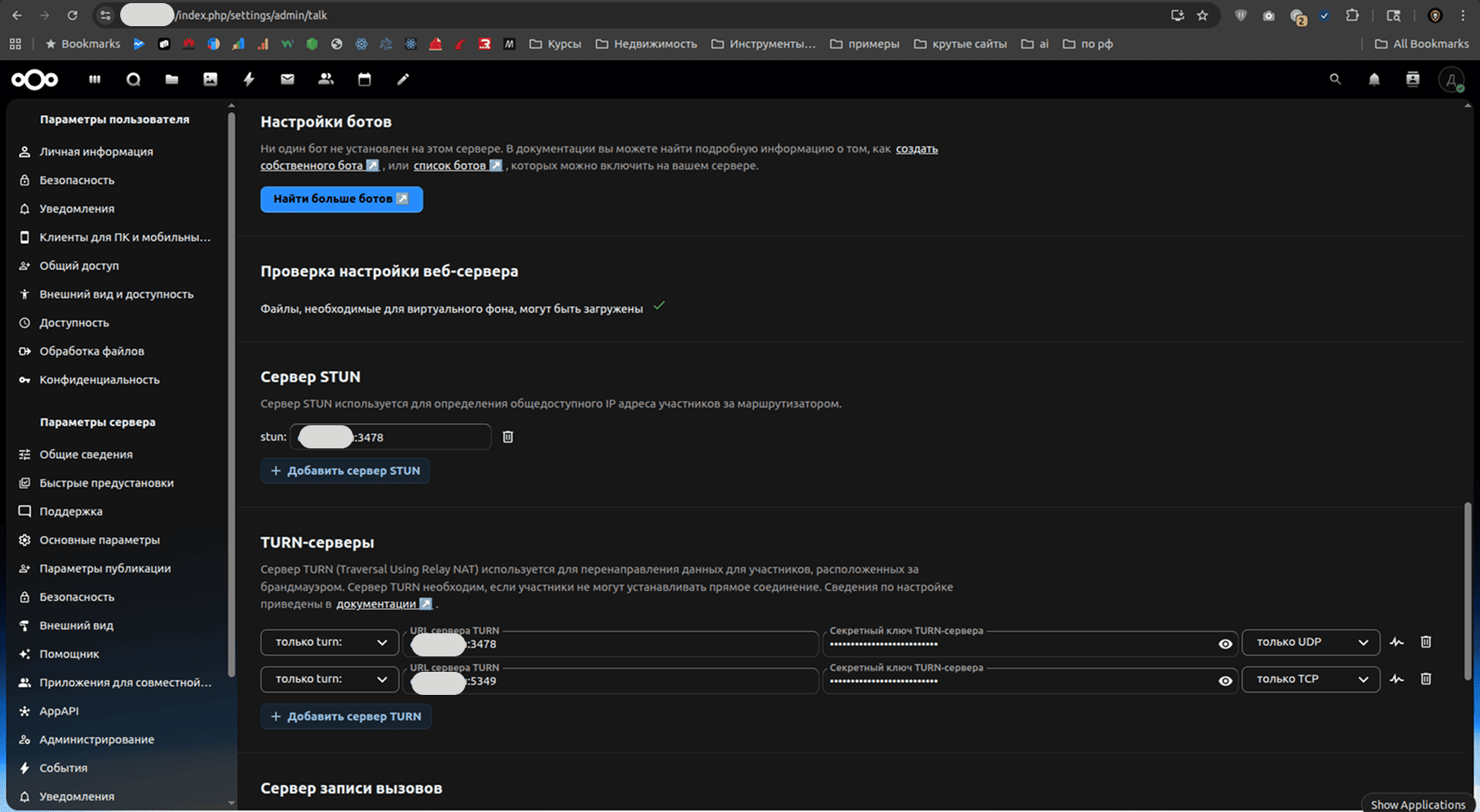
stun:test.ru:3478turn:test.ru:3478 (UDP)turn:test.ru:5349 (TCP)static-auth-secret matching your Coturn settingsIn the file /var/www/nextcloud/config/config.php, add:
'turn.force' => true,
sudo ufw allow 3478/tcp
sudo ufw allow 3478/udp
sudo ufw allow 5349/tcp
sudo ufw allow 5349/udp
sudo adduser newuser
/etc/ssh/sshd_config:
Port 9070
PermitRootLogin no
AllowUsers newuser
sudo ufw allow 9070
sudo systemctl restart sshd
ssh -p 9070 newuser@99.11.123.94
sudo visudo
Add the line:
newuser ALL=(ALL:ALL) ALL
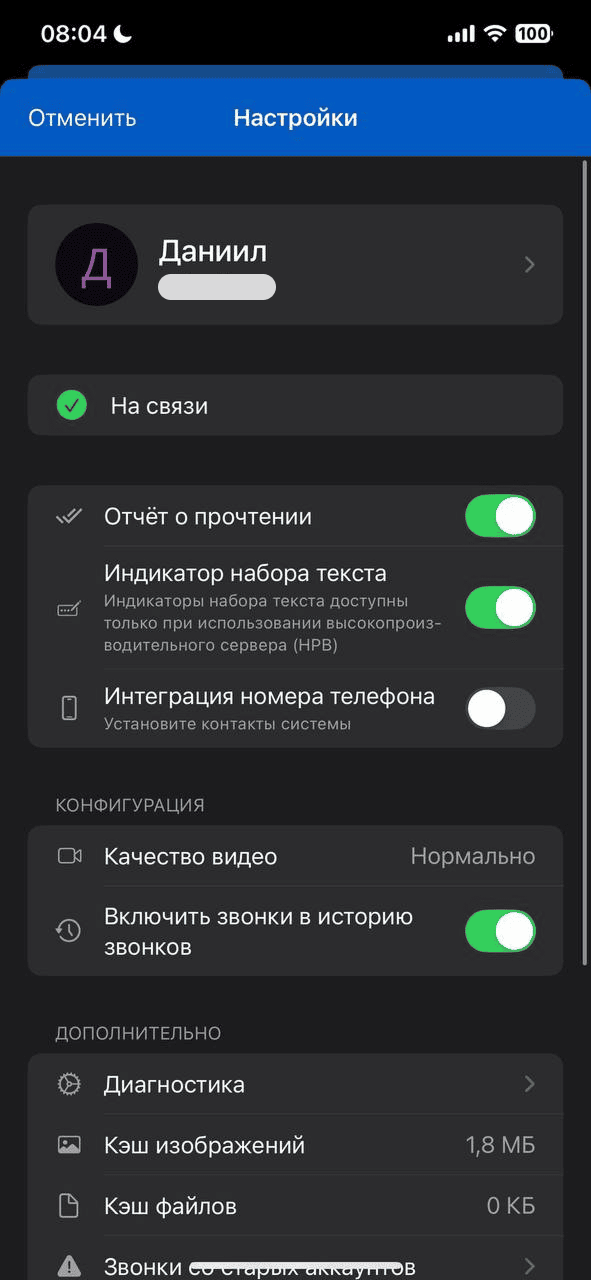
For calls and notifications to work properly, the app requires:
sudo systemctl status apache2
sudo systemctl status mariadb
sudo systemctl status coturn
sudo tail -f /var/log/apache2/error.log
telnet test.ru 3478
telnet test.ru 5349
external-ip is specified in the Coturn configuration/var/www/nextcloud directoryphp.ini: upload_max_filesize, post_max_sizedf -h
OGRNIP 323169000103441


* Meta Platforms, Inc., which owns Facebook and Instagram, is banned in Russia.


 Daily 11:00 AM — 7:00 PM